Built around the page, with the tools to take your story further.
ScreenplaysNovelsPitchesPodcastsCoverage
State-of-the-art models, all in one place.
Virgil is powered by the model families behind Claude, ChatGPT and Gemini, alongside leading AI image and video generation models including Nano Banana, Seedance and Kling.
Virgil began with a large text editor because writing needed to come first. The conversation and creative tools were built around that space, so the work stays in view.
Write directly in the editor. Bring Virgil into the conversation when you want to explore an idea, work through a scene or consider a revision.
In Delacroix’s painting, Virgil accompanies Dante across the Styx. That relationship gives our app its name: help with the next step, while the direction and the decisions remain yours.
In Raphael’s Parnassus, poets gather around Apollo and the Muses. Here, it stands for the connection between the arts, and the freedom to follow a story from words into images and sound.
Develop an outline, find the look of a scene, or work with images, video and sound. Virgil brings those tools into the same workspace, so moving the idea forward takes less work outside it.
You should be able to think about the scene you want to make without rebuilding your process around a different app for every step. That is why we brought the models and tools together.
Inside Virgil / Outline
Before the scene, find its reason.
Start with what happens, what each character wants, and the choice that changes the story. Keep the structure in a separate outline while the screenplay grows beside it.
Work in freeform prose, organize the beats, and return to the plan when a scene loses its direction. This outline follows a quiet encounter on a railway platform, from the first unspoken question to the decision to stay.
Move from the written scene to its visual decisions. Develop shot descriptions, generate frames, and keep the images together so you can see how one composition leads into the next.
Bring character and style references into the process, inspect the results, and refine the shots that need another pass. The board gives you a place to judge continuity, framing and atmosphere before taking an image into motion.
Keep your source media, preview and timeline in one workspace. Add images or video clips, arrange their order, adjust the timing and play the sequence back.
This example places two diner stills in a six-second sequence. The timeline turns separate images into choices about what the viewer sees next, and how long each moment lasts.
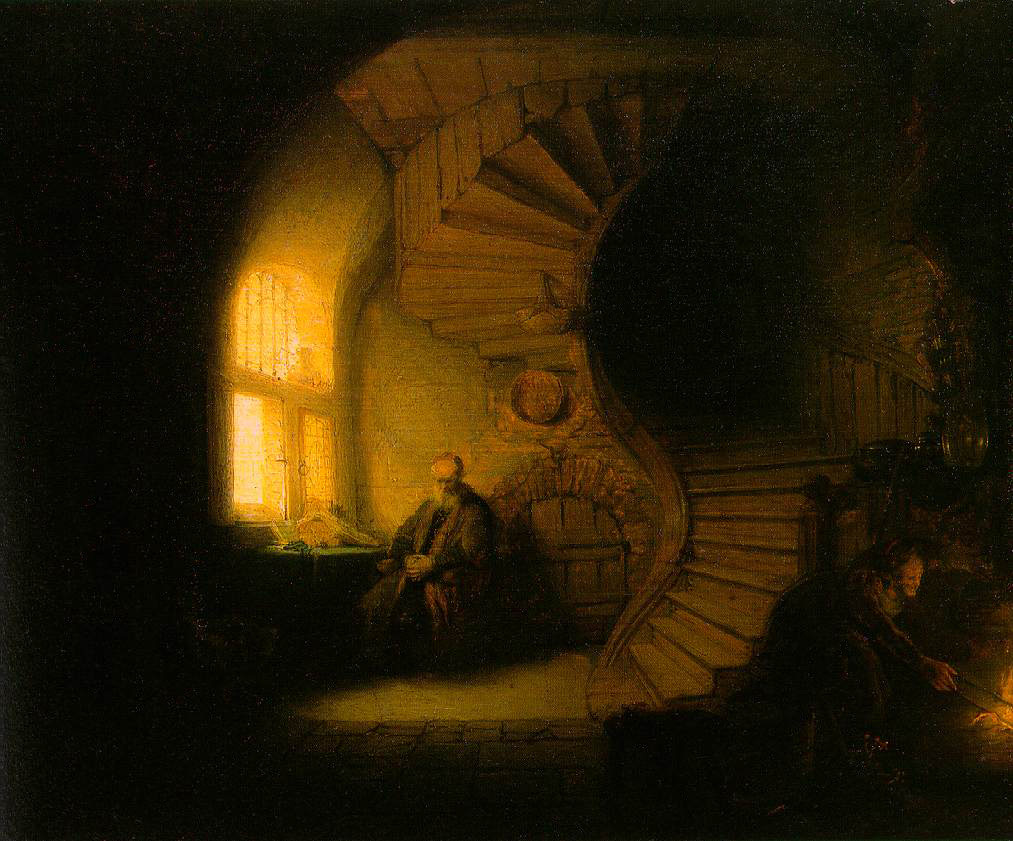
We use Rembrandt’s quiet interior as a reminder of what the tools are here to protect: time to think, to try something, and to stay with an idea. Bringing the software together should make more room for that.
Explore the models behind Virgil and how we use them for writing, images, video and sound. The choices are here when you want them, alongside the work itself.
Powered by Anthropic
Claude Opus 5.5
Dialogue, character and revision.
We use Claude Opus 5.5 for dialogue, character development and revision. It can read your project, discuss specific scenes and propose edits in the document. That makes it useful when you need to understand why a scene is not working, then try a better version.
The screenplay and project conversation in Virgil.
Make the dialogue feel natural
A scene can communicate the right information and still feel wrong. Use Opus to examine where the dialogue explains too much, where a pause changes the balance of power, or where a character's action contradicts their stated desire. Virgil gives the conversation access to your project, so questions about subtext, rhythm and character psychology can begin with the material you are actually writing.
Revise the scene in context
Move from a broad note about a character to a concrete change in the scene. Explore a different entrance, redistribute a revelation, or compare versions of an exchange while preserving its dramatic purpose. In Agent Mode, Opus can work with Virgil's project tools to propose changes. You can evaluate the writing in context and keep developing the version that feels true to the story.
Powered by OpenAI
GPT-6.1 Sol
With GPT-6.1 Terra and GPT Image 2.6
Develop the writing. Explore the image.
OpenAI gives Virgil a partner for turning scattered material into a plan, and a separate image model for making that plan visible. Sol and Terra help develop the writing and work through project tasks. GPT Image 2.6 brings the same deliberate approach to composition and reference-guided image revisions.
A story outline in Virgil, from the encounter to the final choice.
Turn notes into an outline
Bring Sol the fragments that have accumulated around a project: observations, research, scene ideas and unresolved questions. Work toward an outline that separates what happens from why it matters, then test that structure against the draft. Sol and Terra both support writing and project work in Virgil; you can choose either, compare its reading of the material and carry the useful decisions into your next revision.
Generate and revise images
GPT Image 2.6 is a separate image model for generating compositions and revising existing images with visual references. Use it when a scene needs a concrete spatial answer: where the characters stand, which object draws the eye, or how the setting supports the action. Develop the frame, inspect the result and request a specific revision while keeping the source image available for comparison.
Powered by Google
Gemini 4 Argon
With Nano Banana Pro and Gemini Omni 1.2
Work across writing, images and video.
Google connects the written and visual sides of Virgil. Gemini can examine a draft alongside actual images and clips; Nano Banana Pro creates stills; Omni creates motion. We favor Nano Banana Pro for cinematic texture and nuanced light, while keeping visual reasoning and video generation in their own dedicated workflows.
A storyboard and its shot descriptions in Virgil.
Develop a visual style
Gemini 4 Argon can reason about your project and support inspection of actual images and clips. That makes visual discussion more concrete: examine the framing, light or relationship between subjects, then decide what needs to change. Nano Banana Pro is an image choice for developing cinematic stills and polished frames, using character, object and style references to give the scene a more specific visual direction.
Generate video from a frame
Gemini Omni 1.2 turns a shot description, starting image or compatible reference set into a short video with native audio. It also supports an opening and closing frame for a bounded transition. In Virgil, this is a 720p generation workflow: describe the action and camera movement, make a take, then inspect what happened before choosing how that shot should contribute to the larger sequence.
Powered by ByteDance
Seedream 5.0 Pro
With Seedance 2.5
Images and video built around your references.
We use ByteDance's models to help make a visual brief specific. Seedream works with multiple references to arrange people, props and settings in a frame. Seedance takes a shot into motion. Together, they let you develop both what a scene looks like and what happens inside it.
A storyboard and its shot descriptions in Virgil.
Compose images from references
Seedream 5.0 Pro accepts multiple image references for generating and revising stills. Use that flexibility to work through a crowded interior, the placement of a significant prop, or the relationship between two characters in a frame. Virgil supports character, object and style references, so the brief can distinguish what belongs in the scene from how it should look. Compare the result against those original intentions.
Turn the shot into motion
Seedance 2.5 supports text generation, first and last frames, or a separate image reference workflow. Choose the input that answers your creative problem: an exact opening composition, a defined destination, or visual anchors for the subjects. Virgil supports takes up to thirty seconds at 480p or 720p with native audio. Describe the movement and performance, then review the generated take before deciding what to develop next.
Powered by Kling AI
Kling 4.0
Direct a shot from beginning to end.
Kling 4.0 belongs in Virgil for shots that need room to develop. With takes up to thirty seconds, native audio and a choice of 720p or 1080p, you can give an action a beginning and a destination, then see whether the timing, camera and performance serve the scene.
Choose the opening and closing frames
Start from text when you want to explore a shot freely, or supply a first frame when the composition is already established. An optional last frame gives the action a visual destination. These are useful choices for a reveal, an approach or a change in the relationship between characters. Describe what moves, what stays still and where the camera should be as the moment develops.
Use visual references
Kling's separate image reference mode lets you supply visual anchors for a shot without fixing its opening frame. In Virgil, those references can inform the subjects, setting or visual details you want to carry forward. Generate a take and inspect how it follows the brief, including the motion and native sound. Keep the reference material and compare successive attempts before committing to a direction for the sequence.
Powered by ElevenLabs
Eleven v4
With Eleven Music v2.5 and Sound Effects
Voice, music and sound for your story.
A line on the page is only part of a performance. ElevenLabs gives Virgil a way to hear it: character dialogue, narration, a musical cue, the room around the action. We use its dedicated voice, music and sound models to let you explore those choices while the story is still taking shape.
Develop a character’s voice
Use Eleven v4 to hear dialogue performed and develop table reads from the writing. Choose a stock voice or audition a synthetic voice design, then save a voice that suits the character. Virgil can associate approved voices with character dialogue, giving later takes an established starting point. Listen for intention, phrasing and the relationship between lines, and revise the performance or the writing as needed.
Create music and sound effects
Music and Sound Effects serve different parts of the scene. Develop a musical cue around an emotional direction, or describe the ambience and individual sounds that make the location feel inhabited. Virgil supports instrumental music and looping effects, with each generation creating a new take. Audition the result alongside the scene and decide what belongs; the sound remains a creative choice you make for the work.
Built around the page, with the tools to take your story further.
ScreenplaysNovelsPitchesPodcastsCoverage
State-of-the-art models, all in one place.
Virgil is powered by the model families behind Claude, ChatGPT and Gemini, alongside leading AI image and video generation models including Nano Banana, Seedance and Kling.
Virgil began with a large text editor because writing needed to come first. The conversation and creative tools were built around that space, so the work stays in view.
Write directly in the editor. Bring Virgil into the conversation when you want to explore an idea, work through a scene or consider a revision.
In Delacroix’s painting, Virgil accompanies Dante across the Styx. That relationship gives our app its name: help with the next step, while the direction and the decisions remain yours.
In Raphael’s Parnassus, poets gather around Apollo and the Muses. Here, it stands for the connection between the arts, and the freedom to follow a story from words into images and sound.
Develop an outline, find the look of a scene, or work with images, video and sound. Virgil brings those tools into the same workspace, so moving the idea forward takes less work outside it.
You should be able to think about the scene you want to make without rebuilding your process around a different app for every step. That is why we brought the models and tools together.
Inside Virgil / Outline
Before the scene, find its reason.
Start with what happens, what each character wants, and the choice that changes the story. Keep the structure in a separate outline while the screenplay grows beside it.
Work in freeform prose, organize the beats, and return to the plan when a scene loses its direction. This outline follows a quiet encounter on a railway platform, from the first unspoken question to the decision to stay.
Move from the written scene to its visual decisions. Develop shot descriptions, generate frames, and keep the images together so you can see how one composition leads into the next.
Bring character and style references into the process, inspect the results, and refine the shots that need another pass. The board gives you a place to judge continuity, framing and atmosphere before taking an image into motion.
Keep your source media, preview and timeline in one workspace. Add images or video clips, arrange their order, adjust the timing and play the sequence back.
This example places two diner stills in a six-second sequence. The timeline turns separate images into choices about what the viewer sees next, and how long each moment lasts.
We use Rembrandt’s quiet interior as a reminder of what the tools are here to protect: time to think, to try something, and to stay with an idea. Bringing the software together should make more room for that.
Explore the models behind Virgil and how we use them for writing, images, video and sound. The choices are here when you want them, alongside the work itself.
Powered by Anthropic
Claude Opus 5.5
Dialogue, character and revision.
We use Claude Opus 5.5 for dialogue, character development and revision. It can read your project, discuss specific scenes and propose edits in the document. That makes it useful when you need to understand why a scene is not working, then try a better version.
The screenplay and project conversation in Virgil.
Make the dialogue feel natural
A scene can communicate the right information and still feel wrong. Use Opus to examine where the dialogue explains too much, where a pause changes the balance of power, or where a character's action contradicts their stated desire. Virgil gives the conversation access to your project, so questions about subtext, rhythm and character psychology can begin with the material you are actually writing.
Revise the scene in context
Move from a broad note about a character to a concrete change in the scene. Explore a different entrance, redistribute a revelation, or compare versions of an exchange while preserving its dramatic purpose. In Agent Mode, Opus can work with Virgil's project tools to propose changes. You can evaluate the writing in context and keep developing the version that feels true to the story.
Powered by OpenAI
GPT-6.1 Sol
With GPT-6.1 Terra and GPT Image 2.6
Develop the writing. Explore the image.
OpenAI gives Virgil a partner for turning scattered material into a plan, and a separate image model for making that plan visible. Sol and Terra help develop the writing and work through project tasks. GPT Image 2.6 brings the same deliberate approach to composition and reference-guided image revisions.
A story outline in Virgil, from the encounter to the final choice.
Turn notes into an outline
Bring Sol the fragments that have accumulated around a project: observations, research, scene ideas and unresolved questions. Work toward an outline that separates what happens from why it matters, then test that structure against the draft. Sol and Terra both support writing and project work in Virgil; you can choose either, compare its reading of the material and carry the useful decisions into your next revision.
Generate and revise images
GPT Image 2.6 is a separate image model for generating compositions and revising existing images with visual references. Use it when a scene needs a concrete spatial answer: where the characters stand, which object draws the eye, or how the setting supports the action. Develop the frame, inspect the result and request a specific revision while keeping the source image available for comparison.
Powered by Google
Gemini 4 Argon
With Nano Banana Pro and Gemini Omni 1.2
Work across writing, images and video.
Google connects the written and visual sides of Virgil. Gemini can examine a draft alongside actual images and clips; Nano Banana Pro creates stills; Omni creates motion. We favor Nano Banana Pro for cinematic texture and nuanced light, while keeping visual reasoning and video generation in their own dedicated workflows.
A storyboard and its shot descriptions in Virgil.
Develop a visual style
Gemini 4 Argon can reason about your project and support inspection of actual images and clips. That makes visual discussion more concrete: examine the framing, light or relationship between subjects, then decide what needs to change. Nano Banana Pro is an image choice for developing cinematic stills and polished frames, using character, object and style references to give the scene a more specific visual direction.
Generate video from a frame
Gemini Omni 1.2 turns a shot description, starting image or compatible reference set into a short video with native audio. It also supports an opening and closing frame for a bounded transition. In Virgil, this is a 720p generation workflow: describe the action and camera movement, make a take, then inspect what happened before choosing how that shot should contribute to the larger sequence.
Powered by ByteDance
Seedream 5.0 Pro
With Seedance 2.5
Images and video built around your references.
We use ByteDance's models to help make a visual brief specific. Seedream works with multiple references to arrange people, props and settings in a frame. Seedance takes a shot into motion. Together, they let you develop both what a scene looks like and what happens inside it.
A storyboard and its shot descriptions in Virgil.
Compose images from references
Seedream 5.0 Pro accepts multiple image references for generating and revising stills. Use that flexibility to work through a crowded interior, the placement of a significant prop, or the relationship between two characters in a frame. Virgil supports character, object and style references, so the brief can distinguish what belongs in the scene from how it should look. Compare the result against those original intentions.
Turn the shot into motion
Seedance 2.5 supports text generation, first and last frames, or a separate image reference workflow. Choose the input that answers your creative problem: an exact opening composition, a defined destination, or visual anchors for the subjects. Virgil supports takes up to thirty seconds at 480p or 720p with native audio. Describe the movement and performance, then review the generated take before deciding what to develop next.
Powered by Kling AI
Kling 4.0
Direct a shot from beginning to end.
Kling 4.0 belongs in Virgil for shots that need room to develop. With takes up to thirty seconds, native audio and a choice of 720p or 1080p, you can give an action a beginning and a destination, then see whether the timing, camera and performance serve the scene.
Choose the opening and closing frames
Start from text when you want to explore a shot freely, or supply a first frame when the composition is already established. An optional last frame gives the action a visual destination. These are useful choices for a reveal, an approach or a change in the relationship between characters. Describe what moves, what stays still and where the camera should be as the moment develops.
Use visual references
Kling's separate image reference mode lets you supply visual anchors for a shot without fixing its opening frame. In Virgil, those references can inform the subjects, setting or visual details you want to carry forward. Generate a take and inspect how it follows the brief, including the motion and native sound. Keep the reference material and compare successive attempts before committing to a direction for the sequence.
Powered by ElevenLabs
Eleven v4
With Eleven Music v2.5 and Sound Effects
Voice, music and sound for your story.
A line on the page is only part of a performance. ElevenLabs gives Virgil a way to hear it: character dialogue, narration, a musical cue, the room around the action. We use its dedicated voice, music and sound models to let you explore those choices while the story is still taking shape.
Develop a character’s voice
Use Eleven v4 to hear dialogue performed and develop table reads from the writing. Choose a stock voice or audition a synthetic voice design, then save a voice that suits the character. Virgil can associate approved voices with character dialogue, giving later takes an established starting point. Listen for intention, phrasing and the relationship between lines, and revise the performance or the writing as needed.
Create music and sound effects
Music and Sound Effects serve different parts of the scene. Develop a musical cue around an emotional direction, or describe the ambience and individual sounds that make the location feel inhabited. Virgil supports instrumental music and looping effects, with each generation creating a new take. Audition the result alongside the scene and decide what belongs; the sound remains a creative choice you make for the work.